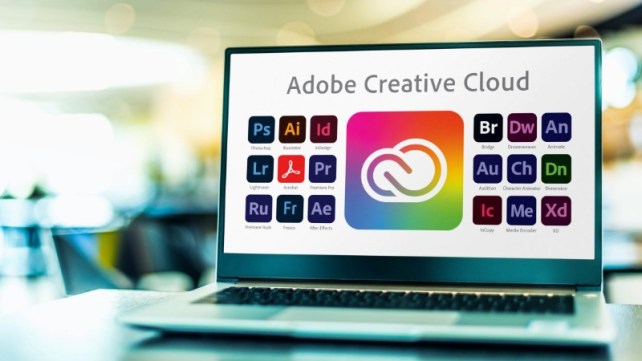
If you recently cancelled your Adobe Creative Cloud subscription, you’re not alone. Adobe Creative Cloud is a powerful collection of professional creative applications, but the monthly subscription can become expensive, especially if you only use a handful of the included programs.
The good news is that there are now excellent free alternatives for almost every major Adobe Creative Cloud application.
Whether you primarily use Photoshop for photo editing, Premiere Pro for YouTube videos, Illustrator for graphics, Acrobat for PDFs, or Audition for audio editing, you can replace much of the Adobe ecosystem with free software and web-based tools.
Even better, you don’t necessarily need to find one program that replaces everything. A combination of free applications can provide an extremely capable creative workflow without another monthly subscription.
In this guide, we’ll look at the best free alternatives to Photoshop, Illustrator, Premiere Pro, After Effects, InDesign, Acrobat, Lightroom, Adobe Express, and Audition.
Why Look for an Adobe Creative Cloud Alternative?
Adobe Creative Cloud offers an impressive collection of professional applications, but the subscription model isn’t ideal for everyone.
If you only occasionally edit photographs, make YouTube videos, create thumbnails, or work with PDFs, paying for a full creative suite every month may not make financial sense.
Free alternatives offer several advantages:
- No monthly subscription
- Many are completely free
- Several are open source
- Many work on Windows, Mac, and Linux
- Some work directly in your browser
- You can continue creating professional-looking content
- You can mix and match applications according to your needs
For someone creating YouTube videos, blog graphics, thumbnails, social media content, and other digital media, a carefully selected collection of free programs can replace most of the Adobe software you actually use.
Best Free Adobe Creative Cloud Alternatives
Here is a quick overview of the recommended replacements:
| Adobe Application | Free Alternative | Best For |
|---|---|---|
| Photoshop | Photopea / GIMP | Photo editing |
| Illustrator | Inkscape | Vector graphics |
| Premiere Pro | DaVinci Resolve Free | Video editing |
| After Effects | DaVinci Fusion / Blender | Visual effects |
| InDesign | Scribus | Page layout |
| Acrobat Pro | PDF24 | PDF tools |
| Lightroom | darktable / RawTherapee | RAW photography |
| Adobe Express | Canva Free / Adobe Express Free | Quick graphics |
| Audition | Audacity | Audio editing |
| Adobe Fonts | Google Fonts | Fonts |
Let’s take a closer look at each one.
1. Photopea — Best Free Photoshop Alternative
If you are looking for a Photoshop replacement without installing complicated software, Photopea should be one of the first tools you try.
Photopea is a browser-based image editor that looks and works remarkably similar to traditional professional image-editing software.
You don’t need to install anything. Simply open Photopea in your web browser and start editing.
What Can Photopea Do?
Photopea supports many of the features people commonly use Photoshop for, including:
- Layers
- Layer masks
- Blending modes
- Gradients
- Text
- Image resizing
- Cropping
- Background removal
- Filters
- Photo manipulation
- Compositing
- Transparency
- PSD files
One particularly useful feature is its support for Photoshop PSD files.
This makes Photopea especially useful if you have old Photoshop projects that you don’t want to abandon after cancelling Creative Cloud.
Photopea for YouTube and Blog Graphics
Photopea is also excellent for creating:
- YouTube thumbnails
- Blog feature images
- Social media graphics
- Website images
- Horror video artwork
- K-drama graphics
- Promotional graphics
If you previously used Photoshop primarily for straightforward image editing, Photopea may be all you need.
2. GIMP — Powerful Free Photoshop Alternative
Another major Photoshop alternative is GIMP, short for GNU Image Manipulation Program.
Unlike Photopea, GIMP is installed directly on your computer.
GIMP has been around for many years and has developed into a powerful image-editing application.
GIMP Features
GIMP includes:
- Layers
- Masks
- Brushes
- Clone tools
- Selection tools
- Filters
- Color correction
- Retouching
- Image manipulation
- Transparency
- Plugins
- Batch processing
GIMP is particularly attractive if you want a completely free and open-source desktop application.
Photopea vs. GIMP
For beginners, I would generally start with Photopea because the interface can feel familiar to Photoshop users.
If you want a powerful desktop application that doesn’t depend on a browser, GIMP is worth learning.
3. Inkscape — Best Free Illustrator Alternative
If Photoshop is primarily for manipulating pixels, Illustrator is primarily for working with vectors.
The best-known free Illustrator alternative is Inkscape.
Inkscape is an open-source vector graphics application that can be used for creating logos, illustrations, icons, diagrams, and SVG graphics.
What Can You Create With Inkscape?
You can use Inkscape for:
- Logos
- SVG graphics
- Icons
- Vector illustrations
- Website graphics
- Diagrams
- Posters
- Business graphics
- YouTube artwork
One major advantage of vector graphics is that they can be resized without losing image quality.
For example, a logo created in Inkscape can be used on a small website icon or enlarged for a large printed graphic.
4. DaVinci Resolve Free — Best Free Premiere Pro Alternative
For video editing, DaVinci Resolve Free is one of the most impressive free alternatives to Adobe Premiere Pro.
DaVinci Resolve is developed by Blackmagic Design and combines several professional creative tools into one application.
The free version provides a remarkably large amount of functionality.
DaVinci Resolve Features
DaVinci Resolve includes:
- Video editing
- Transitions
- Titles
- Color correction
- Color grading
- Audio editing
- Visual effects
- Motion graphics
- Green-screen tools
- Video effects
- Multicam editing
- Professional audio tools
The application is divided into different work areas, including editing, color, Fusion, and Fairlight.
DaVinci Resolve for YouTube
For YouTube creators, DaVinci Resolve can handle practically the entire production process.
You can:
- Import your video clips
- Cut and arrange footage
- Add music
- Add narration
- Add titles
- Add transitions
- Adjust colors
- Improve audio
- Add visual effects
- Export the finished video
This makes it particularly useful for producing videos without having to pay for Premiere Pro.
DaVinci Resolve for Shorts
DaVinci Resolve is also suitable for short-form content.
You can create videos for:
- YouTube Shorts
- TikTok
- Instagram Reels
- Standard YouTube videos
If you are creating horror stories, K-drama videos, movie explanations, travel videos, or other faceless content, DaVinci Resolve gives you a powerful editing environment without a monthly subscription.
5. DaVinci Fusion — Free After Effects Alternative
DaVinci Resolve also contains Fusion, which can replace some of the functionality people use Adobe After Effects for.
Fusion is designed for visual effects and motion graphics.
Fusion Can Be Used For
- Animated titles
- Motion graphics
- Visual effects
- Compositing
- Green-screen work
- Object tracking
- Text animation
- Screen effects
- Transitions
For many YouTube creators, there is no reason to purchase a separate After Effects replacement.
You can simply use DaVinci Resolve and Fusion together.
6. Blender — Free 3D and Visual Effects Tool
If you need more advanced 3D capabilities, Blender is another excellent free option.
Blender is open source and supports:
- 3D modeling
- Animation
- Rendering
- Visual effects
- 3D text
- Sculpting
- Compositing
- Video editing
- Motion graphics
Blender is significantly more complicated than many of the other programs on this list, so you probably don’t need it for everyday YouTube editing.
However, it becomes extremely useful when you want to create sophisticated 3D scenes or visual effects.
7. Scribus — Free InDesign Alternative
If you used Adobe InDesign for page layout, Scribus is one of the main free alternatives.
Scribus is designed for desktop publishing and can be used for:
- Magazines
- Brochures
- Flyers
- Newsletters
- Books
- Posters
- Multi-page documents
- PDF layouts
Most casual users probably won’t need Scribus.
However, if you regularly create documents with complex page layouts, it’s an excellent free program to know about.
8. PDF24 — Free Acrobat Alternative
Adobe Acrobat is another application where you may not need to continue paying for a subscription.
PDF24 provides a large collection of PDF tools.
You can use it for tasks such as:
- Combining PDFs
- Splitting PDFs
- Compressing PDFs
- Converting files
- Rearranging pages
- Extracting pages
- Creating PDFs
- Adding pages
- Removing pages
For everyday PDF management, PDF24 can eliminate the need for Acrobat Pro for many users.
9. LibreOffice Draw — Another PDF Option
Another useful free application is LibreOffice Draw.
LibreOffice is primarily known as a free alternative to Microsoft Office, but Draw can also be useful for working with PDF documents.
The LibreOffice suite includes:
- Writer
- Calc
- Impress
- Draw
- Base
- Math
If you want a completely free office suite in addition to your Adobe replacements, LibreOffice is worth installing.
10. darktable — Free Lightroom Alternative
If you take RAW photographs and used Lightroom to organize and develop them, darktable is one of the best free alternatives.
darktable is designed specifically around photography workflows.
It provides:
- RAW image processing
- Exposure adjustments
- Color correction
- Noise reduction
- Lens correction
- Image organization
- Non-destructive editing
The important distinction is that darktable is more specialized toward photography than something like GIMP.
If you primarily edit JPEG images for websites and YouTube, you probably don’t need it.
11. RawTherapee — Another Free RAW Editor
RawTherapee is another excellent free RAW photo processor.
It provides extensive control over RAW photographs, including:
- Exposure
- White balance
- Sharpening
- Noise reduction
- Color
- Detail
- Lens corrections
- RAW development
Between darktable and RawTherapee, you can experiment and determine which interface better fits your photography workflow.
12. Canva Free — Easy Adobe Express Alternative
For quick graphics, Canva Free is one of the easiest Adobe Express alternatives.
Canva is particularly useful when you don’t want to spend time learning a complicated graphics program.
You can create:
- YouTube thumbnails
- Social media posts
- Blog graphics
- Presentations
- Flyers
- Posters
- Banners
- Instagram graphics
- Marketing materials
Canva’s template-based approach makes it particularly convenient for content creators.
Canva vs. Photoshop
Canva isn’t intended to completely replace Photoshop.
Instead, think of them as serving different purposes.
Canva: fast, template-based graphic creation.
Photopea/GIMP: detailed image manipulation and editing.
Using both gives you more flexibility.
13. Adobe Express Free
Even after cancelling Creative Cloud, you don’t necessarily have to abandon Adobe Express.
Adobe offers a free version of Adobe Express, separate from the paid Creative Cloud subscription.
That means you can potentially continue using Adobe’s browser-based design tools without maintaining the full Creative Cloud subscription.
This can be useful for quick projects where you don’t want to open a full desktop application.
14. Audacity — Free Adobe Audition Alternative
For audio editing, Audacity is one of the most established free alternatives to Adobe Audition.
It is particularly useful for YouTube creators.
You can use Audacity to:
- Record narration
- Edit voice recordings
- Remove unwanted noise
- Normalize audio
- Compress voice
- Adjust EQ
- Cut audio
- Combine tracks
- Edit music
- Export audio
15. Google Fonts — Free Adobe Fonts Alternative
Adobe Fonts is another part of the Creative Cloud ecosystem that you may miss after cancelling your subscription.
Fortunately, Google Fonts provides a huge collection of free fonts.
You can use Google Fonts for:
- Websites
- YouTube thumbnails
- Blog graphics
- Video titles
- Logos
- Social media graphics
- Presentations
Many Google Fonts can also be downloaded and installed directly on Windows.
My Recommended Setup for YouTube and Blogging
If your primary goal is creating online content rather than professional print design, you don’t need to install every program on this list.
A streamlined setup would be:
Photopea
For detailed image editing.
Canva Free
For quick thumbnails and blog graphics.
DaVinci Resolve Free
For YouTube videos, Shorts, TikTok and Reels.
Audacity
For narration and audio cleanup.
Inkscape
For logos and vector graphics.
PDF24
For PDF management.
Adobe Express Free
For quick browser-based designs.
That gives you a surprisingly powerful creative workflow for essentially $0 per month.
What You Can Skip
You don’t necessarily need all of these programs.
For example, if you don’t work with professional RAW photography, there’s little reason to install darktable and RawTherapee.
If you don’t create magazines or complex multi-page layouts, you probably don’t need Scribus.
If you don’t work with 3D graphics, you can skip Blender.
This is one of the advantages of moving away from an all-in-one subscription.
Instead of paying for dozens of applications you rarely use, you can select only the tools that fit your workflow.
Free vs. Paid Software
One important thing to understand is that “free” doesn’t necessarily mean “inferior.”
Programs such as DaVinci Resolve, Blender, GIMP, Inkscape, and Audacity are used by serious creators and professionals.
However, there can still be advantages to paid software.
Paid applications may offer:
- Better integration
- Dedicated customer support
- Specialized professional workflows
- Larger asset libraries
- Cloud collaboration
- Easier interoperability between applications
For many independent creators, however, these advantages may not justify another monthly subscription.
Final Thoughts
Cancelling Adobe Creative Cloud doesn’t mean you have to give up professional creative tools.
There are now excellent free alternatives covering almost every major category.
For most content creators, the most useful combination is:
Photopea + Canva Free + DaVinci Resolve + Audacity + Inkscape + PDF24
You can then add GIMP, Blender, darktable, RawTherapee, or Scribus when you actually need their specialized capabilities.
The biggest advantage is that you can build a creative workflow around the software you actually use instead of paying every month for a large collection of applications.
For someone creating YouTube videos, thumbnails, blog graphics, social media content, and other online media, this free software ecosystem can provide nearly everything necessary to continue creating after cancelling Adobe Creative Cloud.
And if you later discover that you need a particular professional feature, you can always add a paid application individually rather than immediately returning to a full creative-suite subscription.
If you’d like, I can also turn this into a WordPress-ready version with an SEO title, meta description, featured-image idea, suggested internal links, and YouTube video title/description.